An AI interior render turns a room of your plan into a picture of what it could look like: a quick way to see which styles and colors suit it, and a picture to take along when you shop. You need Pro and a plan with rooms, traced over a plan or drawn from your measurements. A render costs 5 credits.
- 1
Pick your room and your view
Switch to Inside and pick the room from the "Room" list in the sidebar. The render is made from exactly what is on screen, so frame the view the way you would take a photo.
- 2
Pick a style and render
Under "Style", pick one of the twelve, from Scandinavian and Japandi to Art deco and Monochrome; each tile shows its colors. Press Render with AI (5 credits). What gets sent is the 3D view on screen and the room's dimensions, to Microsoft Azure OpenAI; Layoutr does not store them and they are not used to train AI models. The privacy policy has the details.
use.layoutr.app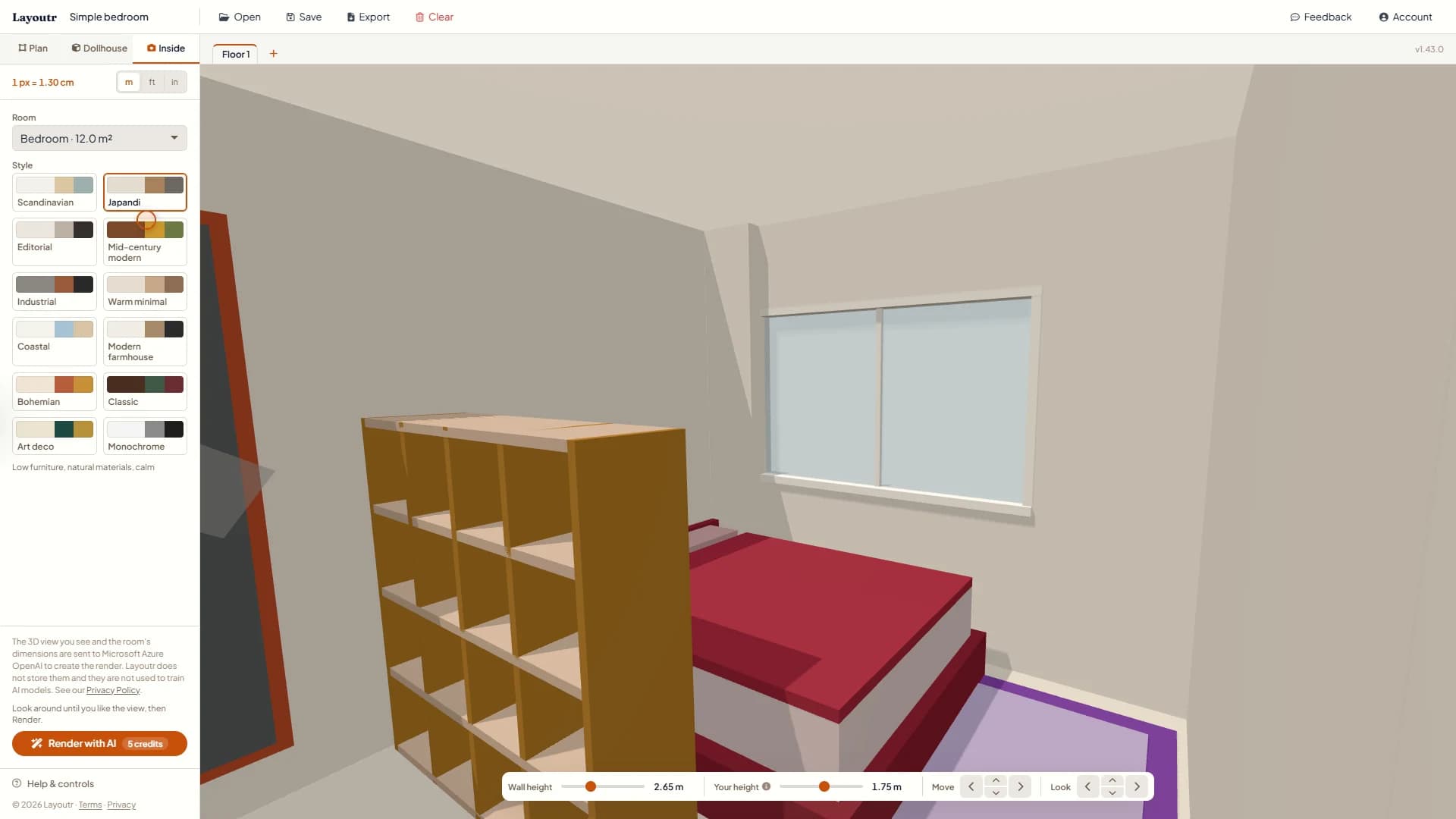
The render panel in Inside mode, with the twelve styles and "Render with AI". - 3
Compare it with your plan
The render appears after about half a minute. Drag the line across it to compare it with your 3D view: the walls, windows and furniture stay where they are on your plan. It is AI-generated, so treat it as a suggestion, not a photo.
use.layoutr.app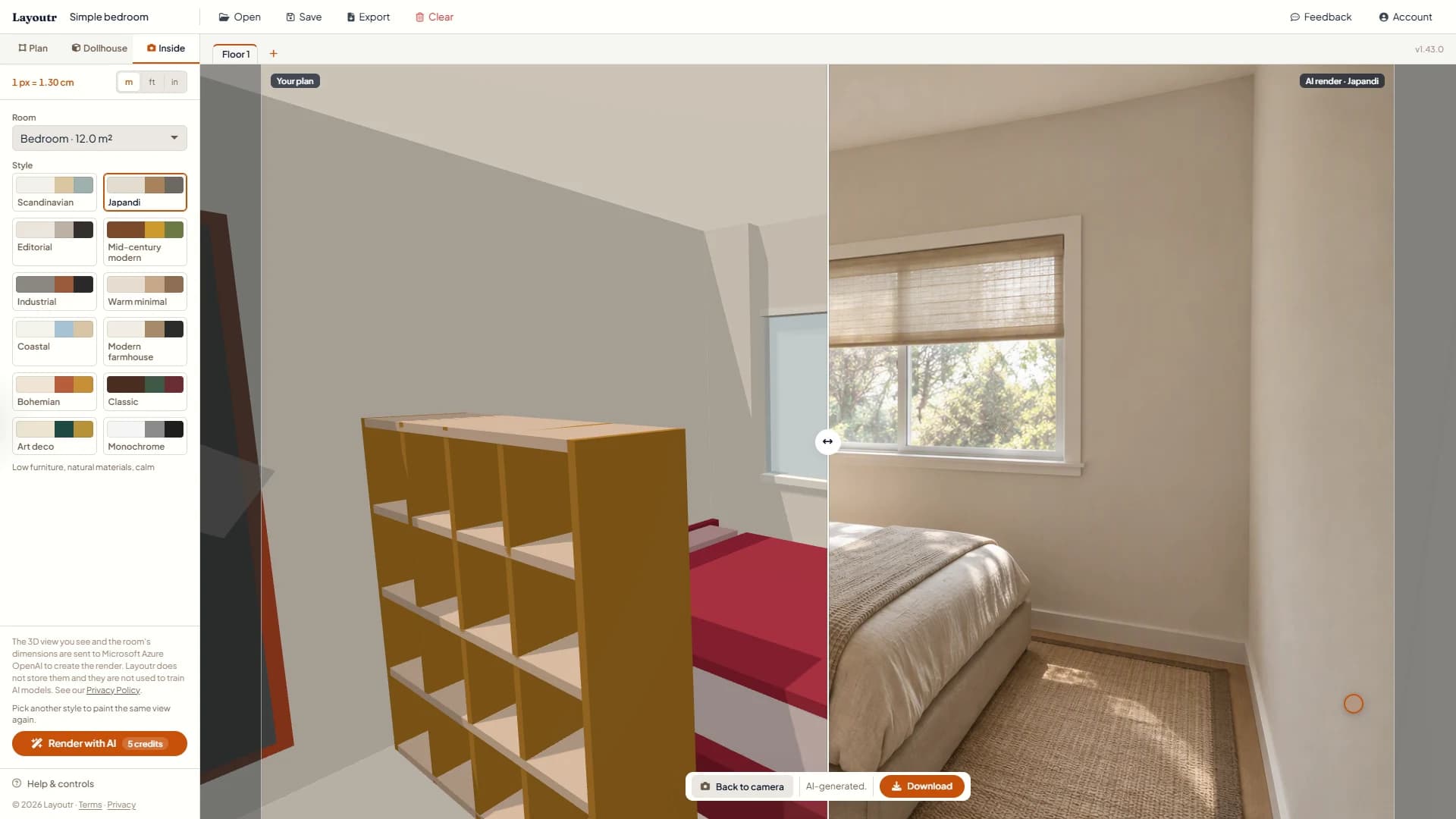
Left, your 3D view; right, the Japandi render. Drag the line to compare. - 4
Try another style, then download
Pick another style and render again. The view stays the same, so only the style changes. Download the one you like.
Tip
Walking through your plan in 3D is free. Renders are part of Pro, at 5 credits each: €4.99 a month with 50 credits a month, or €19.99 once for lifetime access with 100 credits.