Scale is the step that makes every furniture dimension trustworthy. Layoutr cannot know how long a wall in your image really is until you tell it once. You do that by clicking two points a known distance apart and typing the real measurement.
- 1
Start scaling
Click the step 2 button, Set scale. The cursor becomes a crosshair. (If you have not added a plan or a room yet, Layoutr says "Nothing to scale yet" and asks you to add one first.)

Step 2, "Set scale", in the toolbar once your plan is in place. - 2
Click two known points
Click one end of something you have measured, then the other. A long, full wall calibrates far more accurately than a short door width, because any small click error is spread over a bigger distance. A dashed line connects your two points.
- 3
Enter the real distance
The "Define Scale" box shows the pixel distance it measured and asks for the "Real-world distance". Type the true measurement, for example 3.5, choose meters or feet with the units toggle, and press Set Scale. Layoutr works out the pixels-per-meter ratio for the whole plan.
use.layoutr.app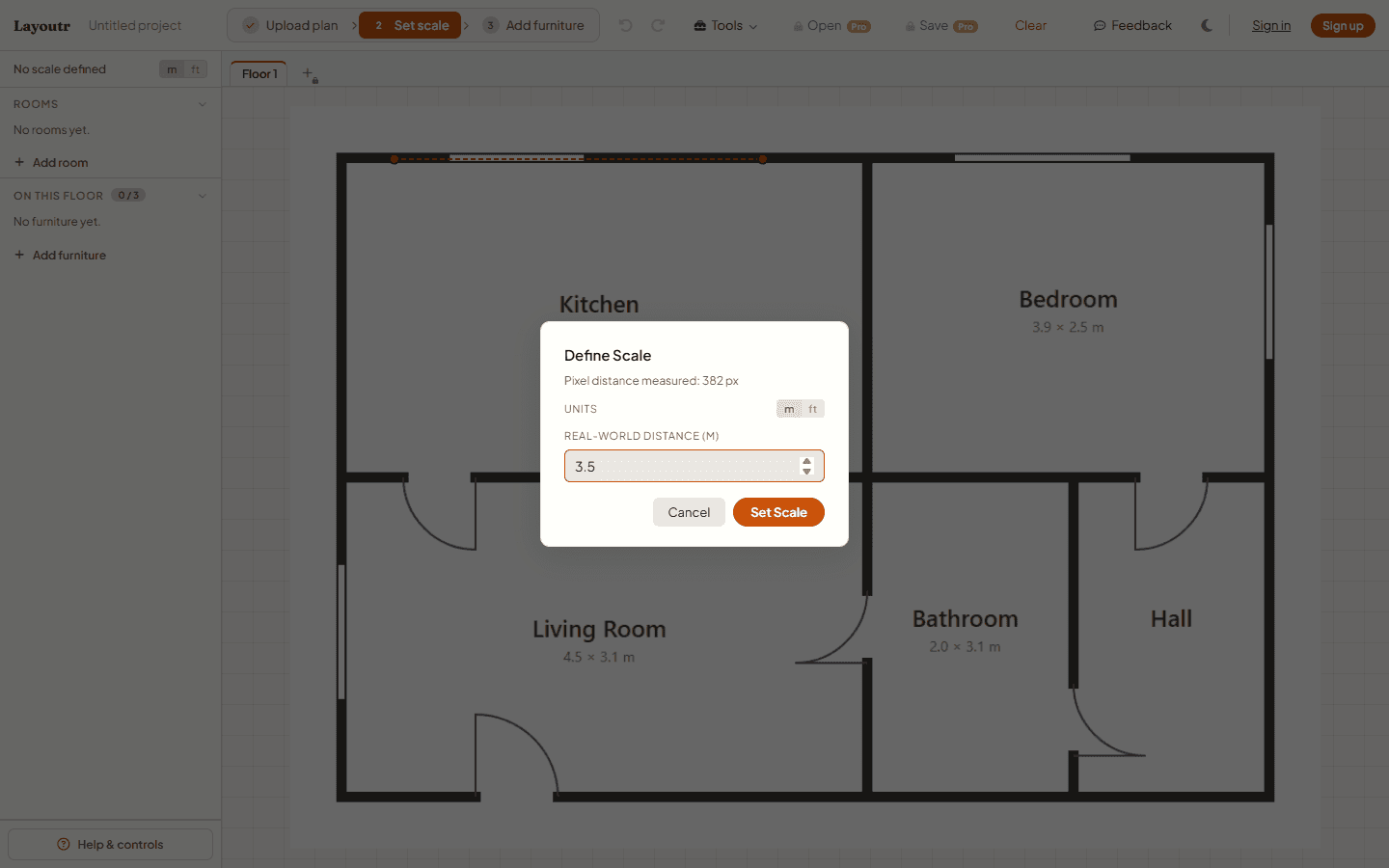
Enter the wall's real length in the "Define Scale" box, then press "Set Scale".
Tip
Small scale errors compound. Being off by 5% turns a 600 mm (24 in) clearance into 570 mm (22 in), the difference between a walkway that works and one that does not.